Installation
Eventmie Pro can be installed via composer or via web-installer. Bruhhh... 💪
{primary.fa-youtube} Here's a complete video tutorial guide for getting started quickly Eventmie Pro Academy 👈
- Server Requirements
- Download Eventmie-pro
- Install via Composer
- Install via Web-Installer
- Purchased From Codecanyon
- Installation Errors
- Signup Error
- Update Admin Email
Server Requirements
Before you start. Make sure your server meets at least the below requirements. (MUST HAVE!)
{primary} Before buying a hosting, simply confirm these requirements with their support team.
- PHP >= 7.4
- MySql >= 5.7.7 or MariaDB >= 10.2.2
- BCMath PHP Extension
- Ctype PHP Extension
- JSON PHP Extension
- fileinfo PHP Extension
- Mbstring PHP Extension
- OpenSSL PHP Extension
- PDO PHP Extension
- Tokenizer PHP Extension
- XML PHP Extension
- iconv PHP Extension
- Imagick PHP Extension
Download Eventmie-pro
- Download Eventmie-pro from
classiebit.com/downloads. - On the same
classiebit.com/downloadspage, make sure you add a domain name to authorize domain, on which you're going to install Eventmie-pro. - If You've purchased Eventmie Pro Enterprise license, then you don't need to add authorize domain, you can install it on unlimited domains.
- No need for domain authorization for
localhost. - Unzip the Eventmie Pro script that you've downloaded.
- You'll find two more ZIP files inside.
eventmie-pro.zipis the Laravel package for install via Composer.eventmie-pro-webinstaller.zipis web-installer for install via Web-installer.
{primary}
eventmie-pro-webinstaller.zipis a complete Laravel website, simply extract it in your website directory and follow the Install via Web-installer guide below.
Install via Composer
Prerequisites
- Laravel version 6.x / 7.x / 8.x
- Laravel Authentication must be installed.
{success} You can install Eventmie Pro on a Fresh or Existing Laravel application.
{primary} Laravel installation guide Laravel Installation 👈
Start Eventmie Pro installation
-
Unzip
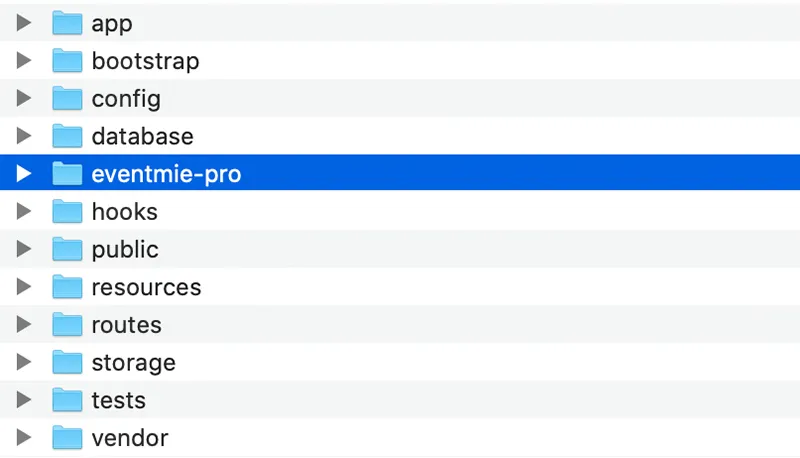
eventmie-pro.zipfile, copyeventmie-profolder and place it in your Laravel application root directory.
{primary} The folder name must be
eventmie-proin your Laravel website directory.
-
Open your Laravel application
composer.jsonfile and paste the below code in the end (right before last curly}bracket)"repositories": [{ "type": "path", "url": "eventmie-pro/" }] -
Install Eventmie Pro via Composer
composer require classiebit/eventmie-pro -
Run Eventmie Pro install command
php artisan eventmie-pro:install -
While installation, it will ask you for the license code. Enter the license code to complete the installation process.
{primary} Remember, one license code is valid for one domain only, except Enterprise license. Read license agreement here - Classiebit Licenses 👈.
Install via Web-Installer
Eventmie Pro also comes with web-installer for those, who are not familiar with the Laravel framework. The web-installer installs Eventmie Pro directly on the web-server in few clicks. No technical or coding skills needed.
{primary} Extract the
eventmie-pro-webinstaller.zipinside the website directory e.gpublic_htmlorwww.
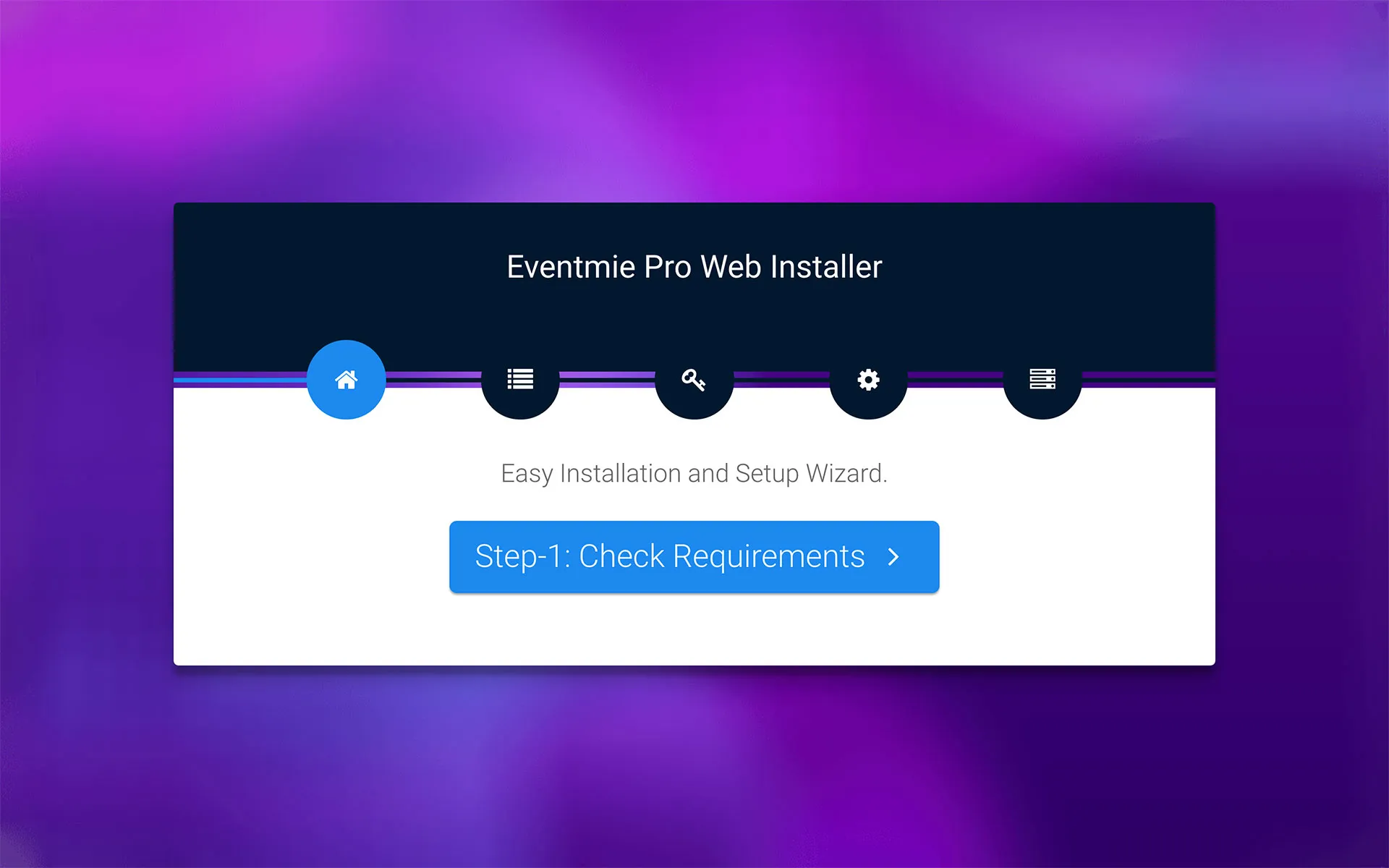
{primary} Web-installer installs everything - Laravel Framework + Eventmie Pro package + composer dependencies.
Follow these simple steps for getting started with web-installer.
-
Create a database on the CPANEL/server and copy the database credentials-
database name,username&password. -
Then after extracting
eventmie-pro-webinstaller.zipin the website directory, go to the website directory. -
Open the
.envfile at the rootpublic_html/.envand enter the database credentials.DB_DATABASE=<database-name> DB_USERNAME=<database-user-username> DB_PASSWORD=<database-user-password> -
Visit the website URL. It'll ask for the License code, enter it and click Proceed.
-
After successful license verification, it'll redirect to the Eventmie Pro web-installer steps form.
-
In the steps form, things are self-explanatory.
-
Step-1: Check server requirements
It'll auto check the webserver requirements, and will point out if any PHP extension is missing. If in case of missing extensions, you need your web server/hosting provider or install missing PHP extension yourself. After installing missing PHP extensions, return to the installer page and refresh. -
Step-2: Check Folder Permissions
If you see some red cross. Change two folder permissionsstorage&bootstrap. (you'll see more info about this on the installer page.) -
Step-3: Final Step
Enter Website Name & URL and Click Install.
-
Purchased From Codecanyon
If you've purchased Eventmie Pro from Codecanyon codecanyon.net then follow these simple steps-
- Enter
Purchase-codeas a License key in the Eventmie Pro installer. - Visit classiebit.com, signup as new user and go to Downloads
- Click on
Purchased from Codecanyon? - In the popup, enter the Purchase-code and submit. You'll see the product on the download list.
- Finally, add the authorized domain, where you're going to install Eventmie Pro, and you're good to go. 👍
Installation Errors
- If you're getting error -
1071 Specified key was too long;while installation, it's due to older Mysql version. To resolve these, follow the below simple step and then try installing again.
-
Go to file
config/database.phpand change these values inmysqlsection'charset' => 'utf8', 'collation' => 'utf8_unicode_ci', 'strict' => false, 'engine' => 'InnoDB ROW_FORMAT=DYNAMIC',
-
If you're running MySql
5.7or older, then disable strict mode insidemysqlsection inconfig/database.php'strict' => false, -
You may get
classiebit/eventmie-pro package not found error, this happens on a very few web-hostings wheresymlinkfeature is disabled by default. And to resolve the error-
- Delete the
classiebitfolder insidevendorfolder and runcomposer updatecommand in the Terminal inside the root directory of website.
Signup Error
After installation, make sure to add Mail server SMTP credentials on Admin Panel.
- Simply visit Admin Panel
- Click on Settings -> Mail tab
- And enter mail server credentials.
- Make sure to test SMTP credentials here- smtper.net if emails are not delivering.
Update Admin Email
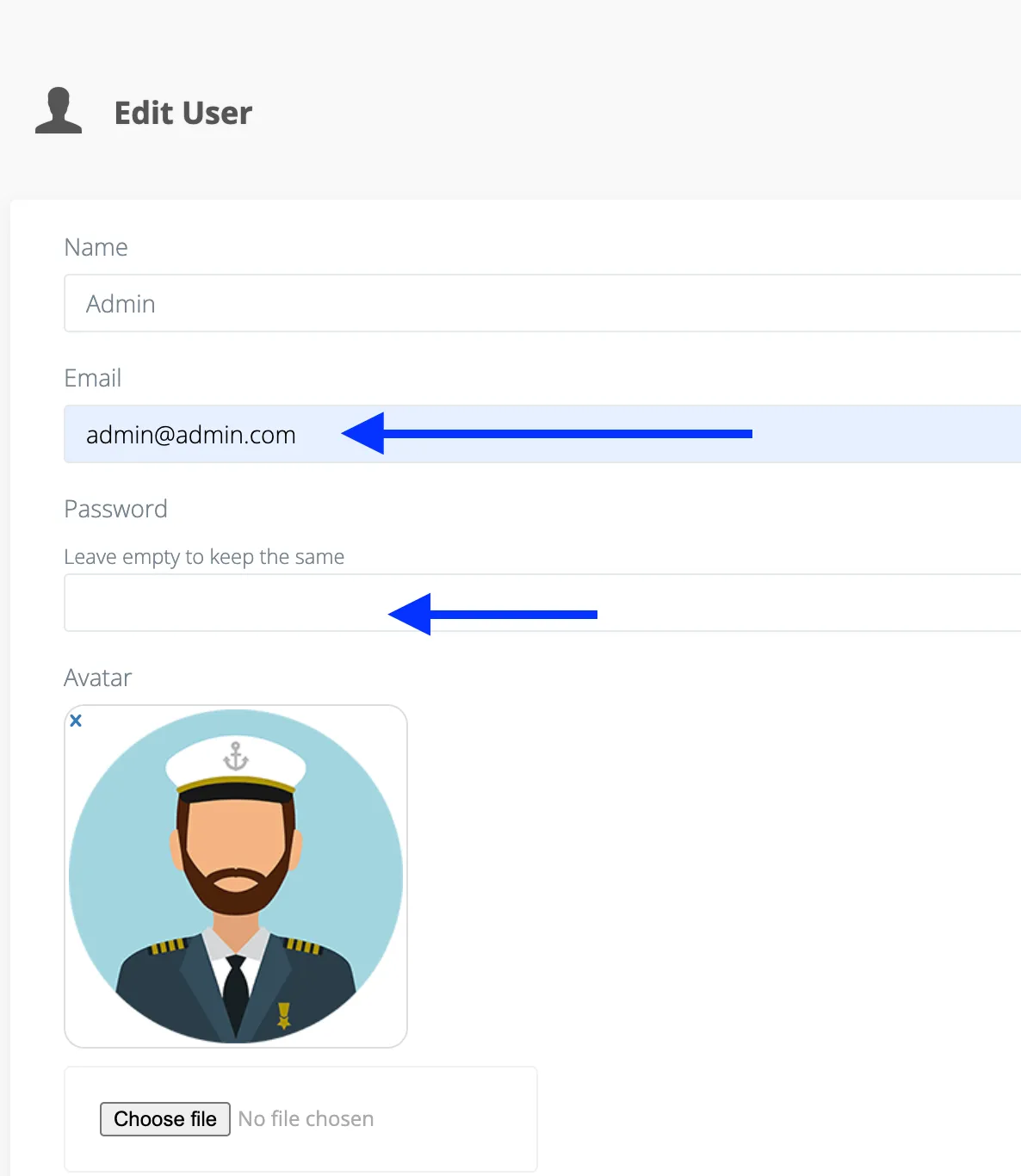
After installation, make sure to update the Admin email & password-
-
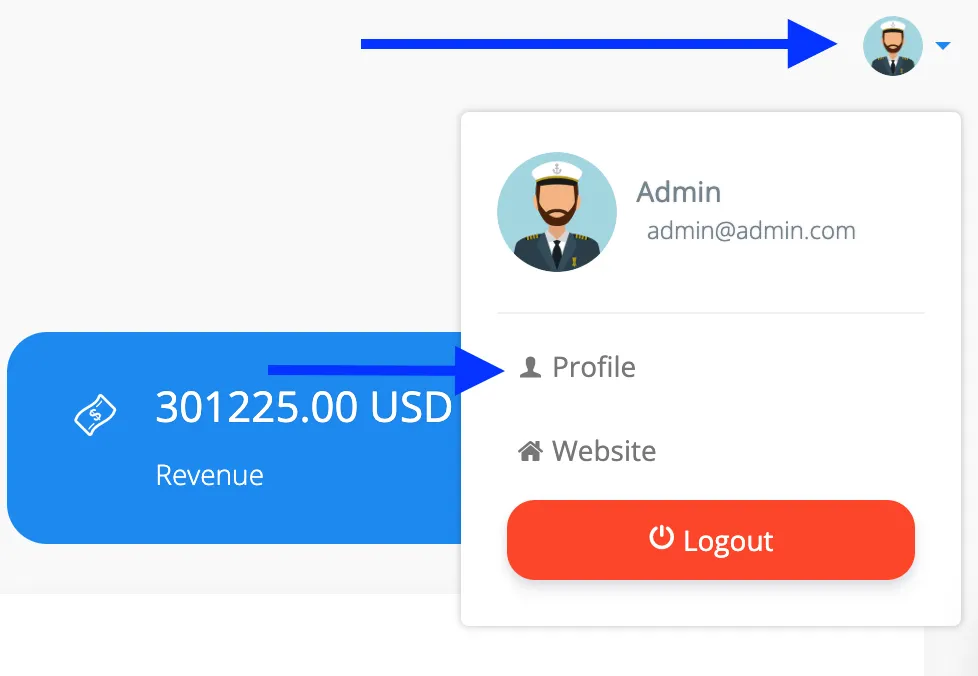
Visit Admin Panel and click Profile icon on the Top-right.
-
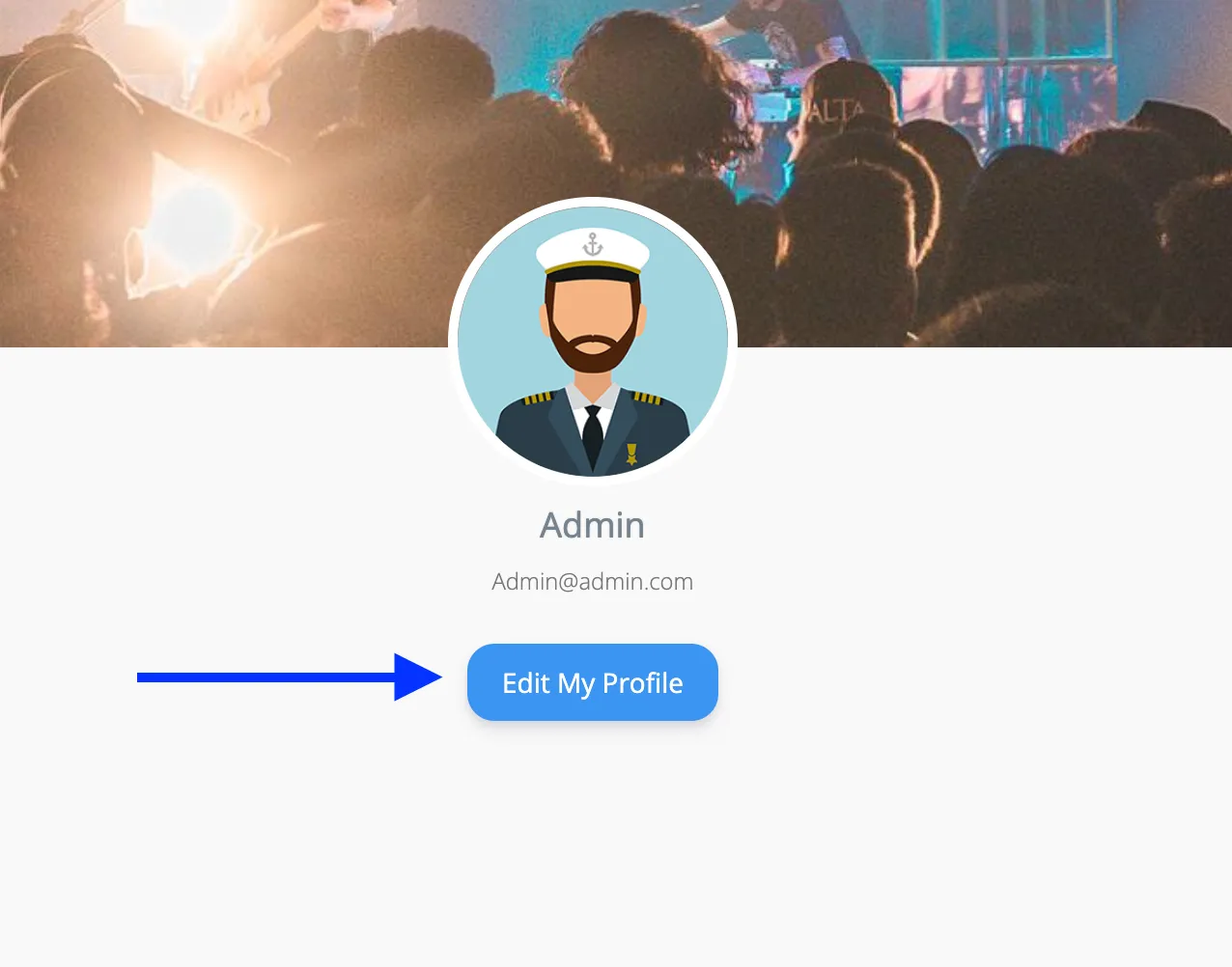
Then click Profile and Edit Profile on the next page.
-
And update the [email protected] to real email address.
-
Also change the Admin password.