Ticket Scanning
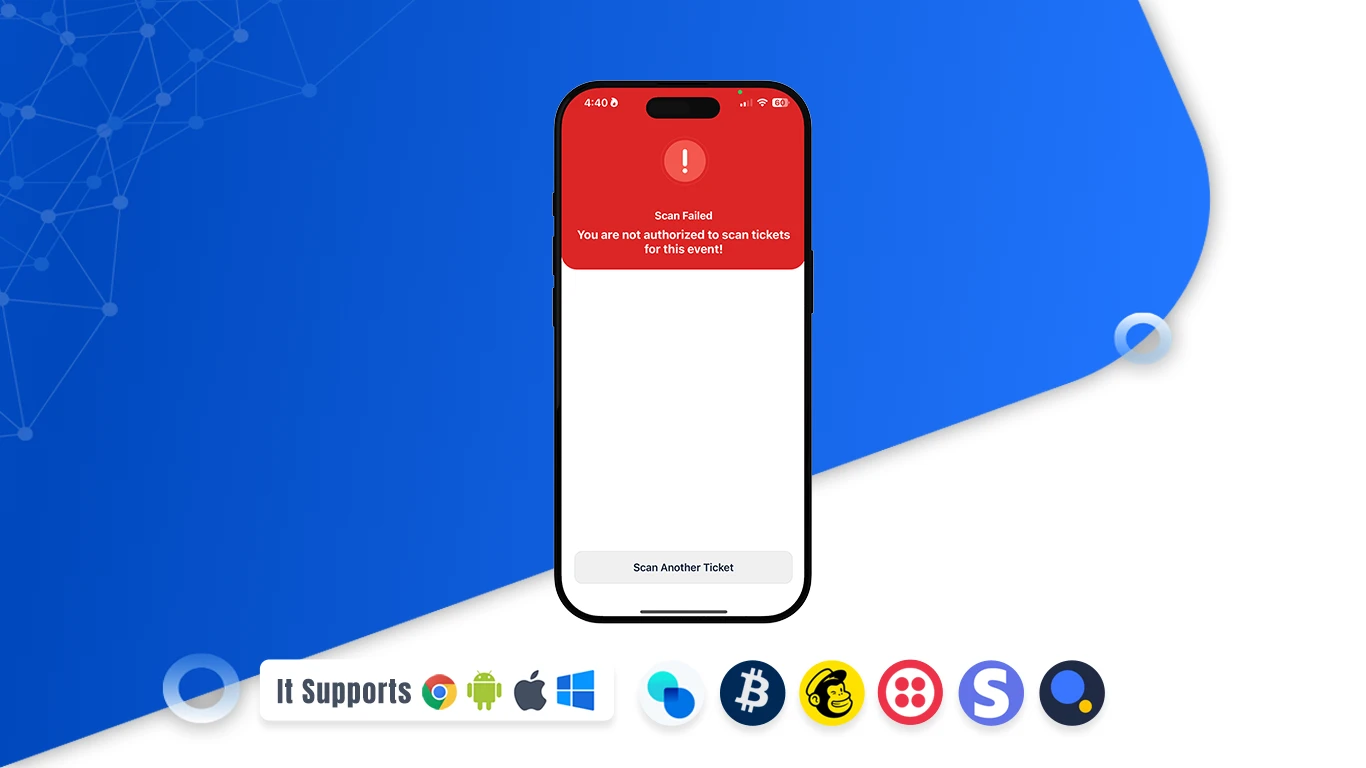
Speed up entry and keep queues moving with mobile ticket scanning in the Eventmie Pro FullyLoaded app. The in‑app scanner gives your door team everything they need to keep lines short and guests happy. Scan QR codes in a snap; the app instantly validates the ticket and shows a clear color screen so staff can make decisions at a glance: green for approved entry, orange for warning/duplicate, and red for denied. This removes guesswork at the gate and prevents accidental double check‑ins. Use it for concerts, festivals, conferences, classes, and private events of any size. Scanning is fast, reliable, and designed for busy entrances. As soon as a ticket is scanned, the attendee’s status is updated so your team always knows who is in the venue. If a ticket raises a warning, staff can review the booking details on the spot and decide whether to admit, re‑scan, or redirect the guest. Invalid, expired, or wrong‑date tickets are flagged in red to reduce misuse and keep your entry lanes secure.

The scanner fits right into your on‑site flow: one‑tap check‑in, automatic duplicate detection, and simple on‑screen prompts for the next step. From VIP to general entry, it supports any lane and any crowd size. With intuitive, color‑based feedback and clear guidance, new staff members become productive in minutes — no training day required. The result is faster entry, fewer bottlenecks, and a smoother first impression for every attendee, from doors open to last call.
How to scan tickets in the app (Step‑by‑step)
- Open Scanner: Launch the app and open the ticket scanner from the event tools.
- Point at QR‑code: Align the QR‑code inside the frame. The app validates the ticket instantly.
- Confirm Check‑in: Follow the color screen guidance (below) and admit the attendee.
What the colors mean
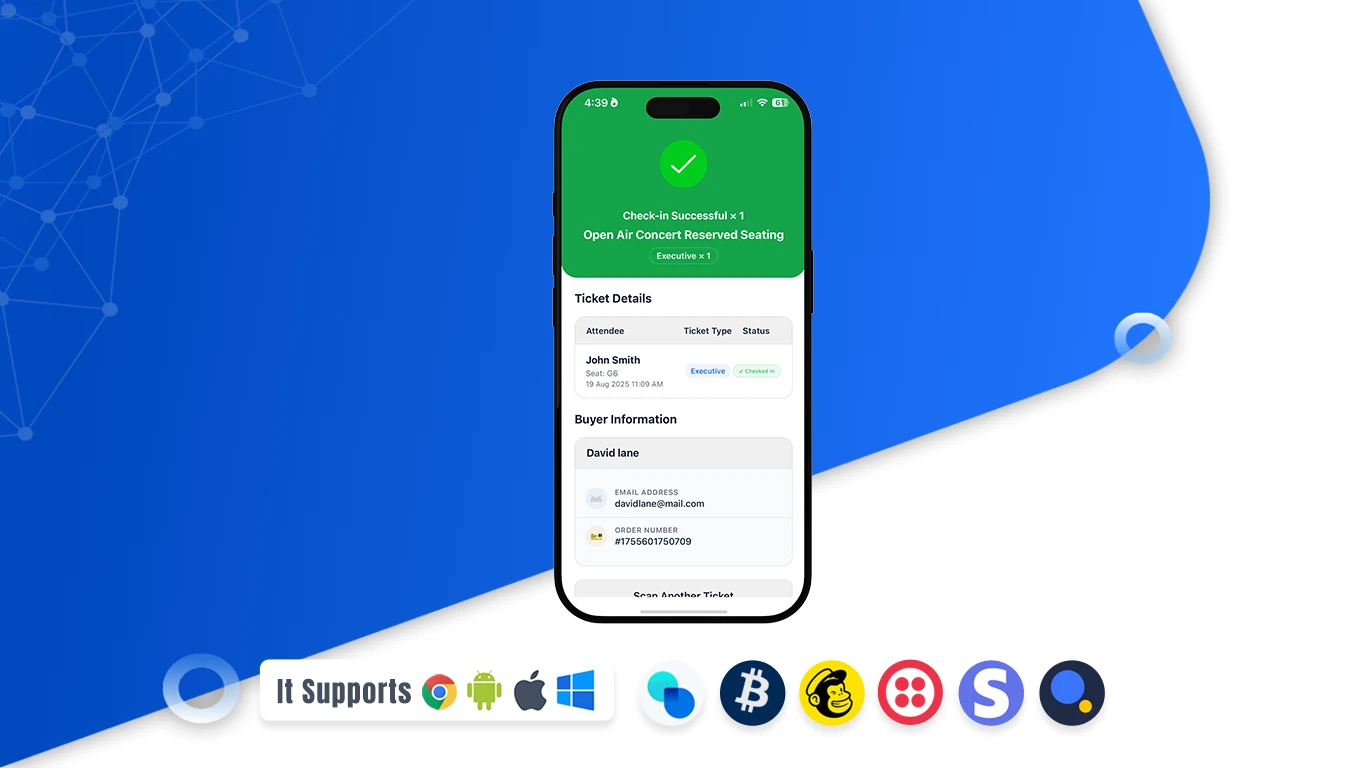
- Green — Entry Approved: Valid ticket. Check‑in successful.
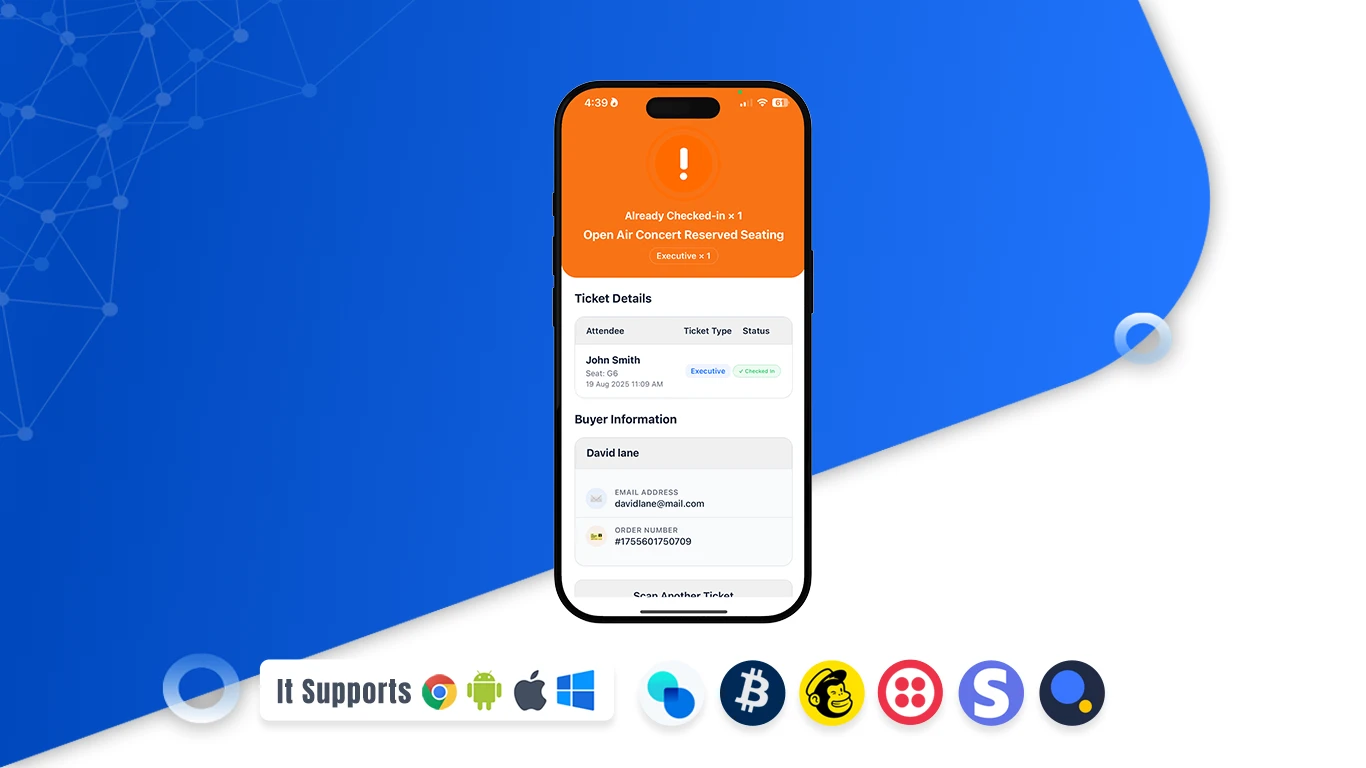
- Orange — Warning / Duplicate: Ticket already scanned or needs manual review. Verify attendee details before check‑in.
- Red — Entry Denied: Invalid, expired, or wrong event/date. Do not admit; ask the attendee to contact support.