Event Cancellation & Refund Management System
Eventmie Pro makes managing event ticket cancellations and refunds simple and transparent. Customers, Organizers, and Admins can handle cancellations directly from their respective Bookings pages. Customers can request booking cancellations, and Organizers or Admins can process and update the status of these requests for a seamless refund experience.
Admins or Organizers can decide whether to issue a refund to customers and update the cancellation status, allowing customers to track their request progress from their Bookings page.
{primary} Pro Tip: Set appropriate pre-cancellation time limits in
Admin Panel -> Settings -> Bookingsto balance customer flexibility with operational efficiency.
Cancellation Workflow Overview
Eventmie Pro's cancellation system operates through a structured workflow that ensures proper handling, communication, and compliance:
Customer Initiated Cancellations
- Self-Service Portal: Customers can request cancellations through their booking dashboard
- Time-Based Restrictions: Cancellations only allowed before the configured pre-cancellation time
- Status Tracking: Real-time updates on cancellation request progress
Administrative Processing
- Role-Based Access: Organizers handle their events, admins handle all events
- Status Management: Comprehensive status tracking and updates
- Refund Processing: Integrated refund handling with payment processors (require additional customization)
Customer Cancellation Process
Customers can initiate cancellation requests through an intuitive, self-service interface that provides transparency and control over their bookings.
When Customers Can Cancel
- Pre-Event Cancellation: Before the configured pre-cancellation time limit
- Valid Bookings: Only active, paid bookings are eligible for cancellation
- Pre-Check-in Status: Cancellations not allowed after check-in completion
- Policy Compliance: Must comply with event-specific cancellation policies
Step-by-Step Cancellation Process
- Access Booking Dashboard: Navigate to the
My Bookingspage from the header menu - Identify Eligible Booking: Locate the booking that meets cancellation criteria
- Initiate Cancellation: Click the
Cancel button on the booking row - Confirmation: Review cancellation terms and confirm the request
- Status Tracking: Monitor cancellation status updates in real-time
- Refund Processing: Receive refund according to the event's refund policy
Customer Experience Features
- Real-Time Status Updates: Live updates on cancellation request progress
- Email Notifications: Automated notifications at each stage of the process
- Policy Transparency: Clear display of cancellation terms and refund policies
- Self-Service Access: 24/7 access to cancellation requests and status
- Communication History: Complete record of all cancellation-related communications
{primary} Important: Once a cancellation request is submitted and processed, it cannot be re-submitted. Ensure all details are correct before confirming.
{success} Notification System: All cancellation requests and status updates trigger automated email notifications to all relevant parties.
Organizer Cancellation Management
Organizers have comprehensive control over cancellation requests for their events, enabling professional customer service and proper business management.
Organizer Capabilities & Responsibilities
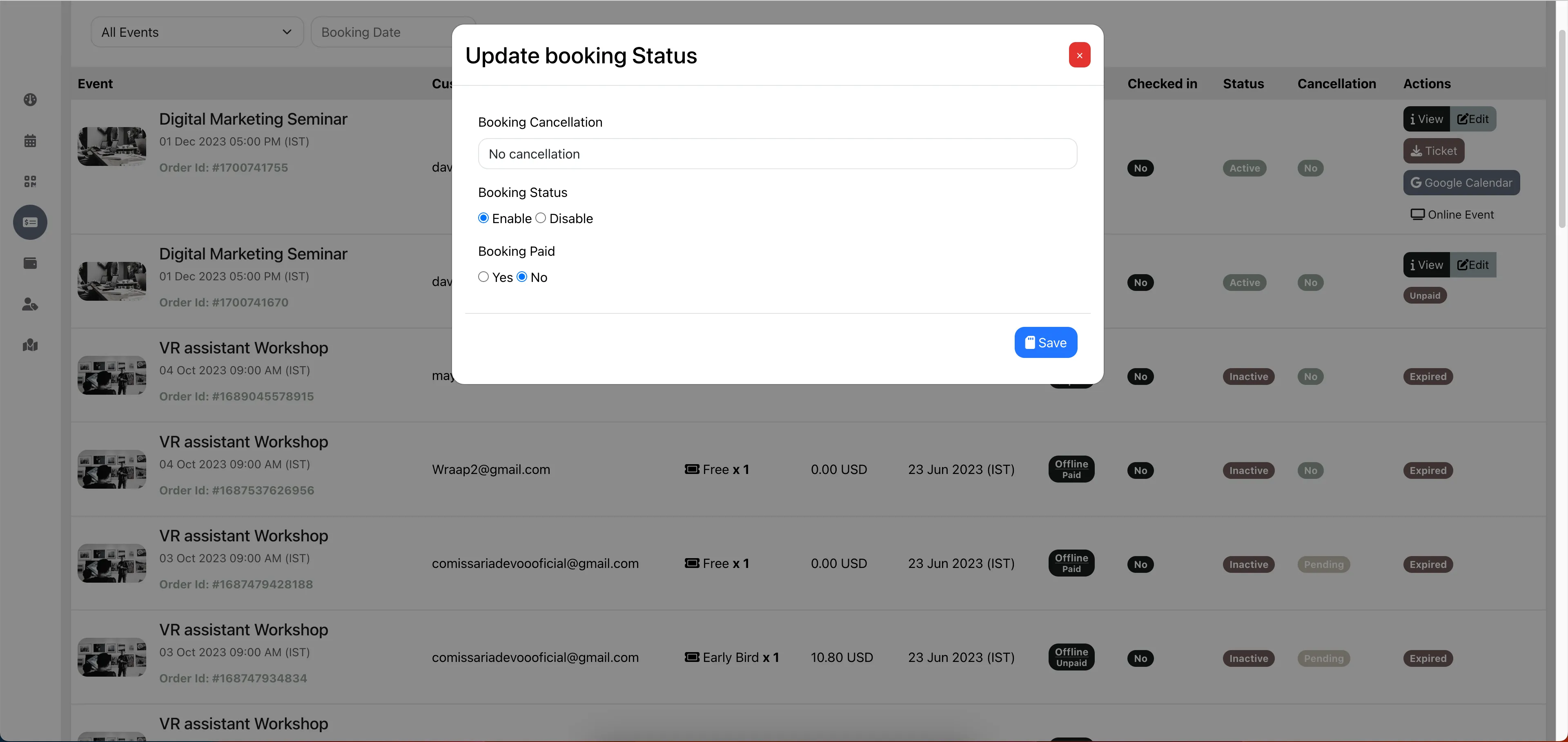
- Request Processing: Review and approve/deny cancellation requests
- Status Management: Update cancellation and booking statuses
- Refund Coordination: Process refunds and update payment status
- Customer Communication: Maintain professional customer relationships
- Policy Enforcement: Apply event-specific cancellation policies
Administrative Workflow
- Access Booking Management: Navigate to the
Bookingspage from the organizer dashboard - Review Cancellation Requests: Identify pending cancellation requests
- Evaluate Request: Assess cancellation reason and policy compliance
- Update Status: Use
Edit to modify cancellation status - Process Refund: Handle refund according to payment method and policy
- Update Booking Status: Set booking status to
Disabledafter refund. Only after youDisablethe booking, the customer will not be able to use the booking. And the ticket will be available for resale to other customers.
Status Management Options
- No Cancellation: Booking remains active and valid
- Pending: Cancellation requested, under review
- Approved: Cancellation approved, refund in process
- Refunded: Cancellation completed, refund issued
Booking Status Management
- Enabled: Booking is active and valid for event access
- Disabled: Booking is invalidated and cannot be used
Payment Status Control
- Is Paid - Yes: Payment confirmed, full access granted
- Is Paid - No: Payment pending, limited access
{success} Admin Capabilities: Administrators can perform the same cancellation management actions as organizers from the
Admin Panel -> Bookingssection.
Cancellation Status Management
Eventmie Pro's intelligent status management system provides clear visibility into cancellation progress and ensures proper workflow control.
Status Hierarchy & Workflow
The cancellation system operates through a structured status hierarchy that ensures proper processing and compliance:
| Cancellation Status | Booking Status | Description | Business Impact | Next Actions |
|---|---|---|---|---|
| No Cancellation | Enabled | Booking is active and valid | Full event access granted | Monitor for changes |
| Pending | Enabled | Cancellation requested, under review | Ticket remains valid during review | Process request decision |
| Approved | Disabled | Cancellation approved, refund in process | Ticket access suspended | Complete refund process |
| Refunded | Disabled | Cancellation completed, refund issued | Ticket permanently invalidated | Tickets are available for resale |
Status Management Best Practices
For Organizers & Admins
- Timely Processing: Review and process cancellation requests promptly
- Status Synchronization: Always update both cancellation and booking statuses
- Refund Coordination: Ensure refund processing aligns with status updates
For Customers
- Status Monitoring: Regularly check cancellation request status
- Policy Understanding: Familiarize yourself with event cancellation policies
- Timely Requests: Submit cancellation requests before deadlines
Technical Implementation
- Real-Time Updates: Status changes reflect immediately across all interfaces
- Audit Trail: Complete logging of all status changes and timestamps
- Notification System: Automated alerts for all status updates
- Reporting Capabilities: Comprehensive reporting on cancellation patterns
{primary} Critical Workflow: When updating
Cancellation StatustoApprovedorRefunded, always change theBooking StatustoDisabledto properly invalidate the booking.